Download excel with multiple sheets in visualforce page

In this blogpost, i am going to share how to export an excel from visualforce page with multiple sheets in it.


renderAs attribute in the <apex:page> component gives you flexibility to download a visualforce page's output in pdf or xls. In this case, we will use XLS by using following code:

By using renderAs = text/xml, we will get the vf page output as excel, that means we can use excel's code to make Excel compiler understand its syntax. Excel understands data in XML form, so we are going to create XML for excel to understand. 

 - The first thing we have to use is xlsHeader, which is a string that i am setting in controller just so that i can use it in my page. you can hard-code it in the page as well. This should be the first element in your page. This contains the first element of any XML file which is <xml> (similar to <apex:page> in vf page)


- The 2nd thing to note is the excel works in workbooks. one instance of excel is one workbook. One workbook may have multiple tabs/sheets, whatever you call it, but it should all belong to one workbook. So after my header, i am defining <workbook> component

What comes after workbook is <styles> tag, which as name suggests is similar to css classes. in this example, i am defining a style with the ID ="s1", which tells that text should be in bold and the formatting will be numerical, alignment will on top. Very similar to css classes.

- After that we have the main area, which is called worksheets or tabs in excel. Excel calls them worksheets. So every worksheet will have a name which is defined in the attribute "ss:Name". in our case Accounts & Contacts. 


- After worksheets, we have <table> which defines a table and <rows> which defines a row. In every row we have <cells> and every cell has <data> in it. 

- you can add style to any cell by using <cell ss:StyleId ="classname">, which will apply the style defined in that style tag, as defined before and you can type to any data by using ss:Type, which is like "Format Cell" option in excel UI.

- in this example, i have created 2 worksheets, one for Account & other for Contacts.

Code is available at github

Using reports to create dynamic columns in pageBlock Table

This is 3rd series from the blogpost where i was explaining how we can show data in visualforce pages with the flexibility for the client/admin to change the fields to display on the page without changing the source code. In this example i am using Reports.

In this example, i am leveraging Salesforce's ReportManager class, which has the flexibility to run reports synchronously and async as well. I am going to use async method in this demonstration, but you can also use async methods, description here.

The source code is available at GitHub.

The code is very simple, all you need is reportId. You can hard-code in your class like i did, or you can also pass it as a parameter in the page. If you want to make it more dynamic, you can query reports from your org and show the report names as select options.


 public ID reportId {get;set;}
    public Reports.ReportResults reportResults{get;set;}
    
    public RG_getDynamicColumnsViaReports(){
        reportId='00O90000009S7X5'; //i am hard-coding the id here, but you can also pass it to parameter in page or query it
        runReport();
    }
    
    public void runReport(){
         
        reportResults = Reports.ReportManager.runReport(reportId, true);
    }

If you notice in the code above, all i am doing is running the report using ReportManager's runReport method. That is all you need. It will return the list of Reports.ReportResults class, which contains all your data.

Page:

<apex:page controller="RG_getDynamicColumnsViaReports" sidebar="false">
    <apex:includeScript value="{!URLFOR($Resource.dataTable, 'js/jquery.js')}"/>
<apex:includeScript value="{!URLFOR($Resource.dataTable, 'js/jquery.dataTables.min.js')}"/>
<apex:stylesheet value="{!URLFOR($Resource.dataTable, 'css/jquery.dataTables.css')}"/>
    <apex:form >
        
        <apex:pageBlock >
           
            <table id="outtable" class="reportResults">
           <thead>
               <apex:repeat value="{!reportResults.reportMetadata.detailColumns}" var="colName">
                   <th><apex:outputText value="{!reportResults.reportExtendedMetadata.detailColumnInfo[colName].label}"/></th>
               </apex:repeat>
           </thead>

           <tbody>
               <apex:repeat value="{!reportResults.factMap['T!T'].rows}" var="row">
                   <tr>
                       <apex:repeat value="{!row.dataCells}" var="cell">
                           <td><apex:outputText value="{!cell.label}"/></td>
                       </apex:repeat>
                   </tr>
               </apex:repeat>
           </tbody>
         </table>
        </apex:pageBlock>
    </apex:form>
<script>
    //to make the table UI look nice, i am using datatables.js
    j$ = jQuery.noConflict();
            j$(document).ready( function () {
                var outTable = j$('[id$="outtable"]').DataTable({
                    
                });
            });
</script>
</apex:page>


I have used 2 repeats here in the page. One for iterating in the reportExtendedMetadata to get header labels and 2nd for getting row data, which is being stored in factMap class of exportResults. 

Here is the output:


Using listViews to create dynamic columns in PageBlock in visualForce page

This is 2nd post from the blogpost that explains how can a developer creates a visualforce page with the flexibility for the client or admin to change fields by themselves without involving a developer. In my previous post, i explained about using field sets to do the same. In this post, i will explain another way i.e. using list views from the object.

In this approach, we can create custom list views on the object and use that list view to get all the fields used in the list view and display them in the visualforce page

Here is what you need to do that:
1) Enable rest API urls in remote Site Settings. Since listView method is only available in rest API, we need to do a callout to get the listView details.


2) In the controller, we will do the callout. I have hard-coded 2 parameters for this example, but you can make them dynamic as per your requirement
     a) objectApiName - This will store the API name of the object which you                need to query
     b) listViewId - This is the Salesforce id of the list view. you can query                    it(shown in the code as commented), or you can find it from the list view            URL (it starts with 00B), image below:


3) In the controller, i am getting 2 things from the response
    a) Query parameter - that contains the whole query from list view. YES,                 salesforce creates a query for you automatically
    b) Columns to Display - in the response, we have columns parameters, that           contains api name of the fields used in the listView. This will be used to             show the columns from the query. You can also split the columns name             from 1st parameter(query)

4) That is it, rest of the things are pretty obvious. A vf page to display the query     results in page block table.
SOURCE CODE AVAILABLE AT : gitHub

Output :


How to be an expert and get your dream job in salesforce in less than 5 months

Salesforce is a hot product and has changed a lot in last few years. Back in 2010, when I started working on this platform, very few people in India were aware about it. But now, almost every IT company knows about Salesforce and want to have some good resources on the same technology. Also, since new customers are joining Salesforce every single day, that means demands for Salesforce Admin, Developer & consultant are increasing.
It is not very difficult to become an expert in salesforce, but it requires some patience and dedication. In this blog, I am going to share few steps to become a salesforce expert, which I have learnt from my experience of 7 years in salesforce. If you follow these steps, you will get a good paying job in salesforce technology.

1)      Register a DEV ORG for your practice
Anyone interested in learning salesforce must have a DEV account in order to play around the platform. This is life-time free of cost salesforce instance that allows you to learn and practice things.
With this org, you can do following things:
a)       Build new features and functionalities (like Custom app, fields, validation rules, security settings)
b)      Create and execute APEX Code & visualforce pages (If you are developer)
c)       Access the salesforce community (http://developer.force.com/)  to get hands on never-ending supply of salesforce documentations, produced by salesforce & the community.
You can also register for various salesforce training sessions using this credentials in this community.
d)      Create packages for your code for appexhange.
e)      Installing packages created by other companies from appexchange.
f)        And much more…

2)      Learn, Practice, Learn, Practice….


Once your dev account is created, its time to get started on practicing your learnings on this account. There are various resources that can help to get started on learning salesforce, few of them are:
a)       Salesforce Fundamental PDF – This pdf is very good starting point to learn salesforce. This pdf will help you create a Recruiting app with the help of examples and easy walkthroughs.  Make sure you implement all the exercises that you learn in this pdf.
b)      Salesforce Trailhead – trailhead.salesforce.com is an interactive learning tool developed & maintained by Salesforce. Its very similar to Code Academy in that it has modules  you’ll work through using your admin org. Along the way, you’ll learn the basics of Salesforce while earning points and badges. It’s phenomenal (and totally free).
c)       Salesforce YouTube Channel— This is also a very great resource of learning salesforce from various videos uploaded by Salesforce.

3)      Join a meetup group and start networking – There are over 200 user groups around the world that allows you to meet, learn and make some networking with other local salesforce talent. Try to meet other people and learn from their experiences. Bigger network you have, easier it would be to get a job.

4)      Be Active on social networking Sites – Salesforce groups are there in almost every networking website like Linkedin or Facebook. Be a member of them to keep updated on what is happening, what new is coming. Also become friends with various salesforce talent around the globe. Follow people and blogs that are interesting to you. I have learned a lot from following blogs from various salesforce experts like Bob Buzzard and Ankit Arora.

5)      Volunteer – Once you get hold of salesforce customizations(for developers) and configurations, I would advise you to be part of salesforce developer forums and start contributing in them. Some of the good salesforce communities are:
a)      Salesforce Developer forums : https://developer.salesforce.com/forums/
b)      Stackexchange : http://salesforce.stackexchange.com/
Be part of these forums. See what are the issues other people are getting. Try to help them with replying the solutions to them. That way, you will learn real-time issues that any book can not teach you.

I hope this help you guys to get started on salesforce. Happy learning. I am looking forward to meet you guys in salesforce communities. Any questions you have, feel free to reach me at rohit@applikontech.com and I will try my best to answer those questions as soon as possible.


Use case for Salesforce Geocodes introduced in Summer'16

In my last post, i shared with you guys about the new geocodes fields introduced by salesforce in Summer'16 release for few standard address fields on Account, Lead, & Contacts.

In this post, i am going to share one use case with you. Had this feature was there back in 2015, when i was working with a client on a mobile app for sales users to help them identify few nearby clients to their existing location, that would have been much easier for me. We had to use google location apis to get co-ordinates of address fields and then select the shortest few clients and display them on the mobile app of the sales team. 

But now, since this new fields are there, this has become a very easy task.

I am gonna share a code snippet with you to display nearest 5 clients to current location of a user.

Here is the agenda of the code:
1) Get users's current location co-ordinates (I am going to use JS for that)
2) Using these co-ordinates to SOQL distance query to get nearest accounts and display them on page


1) get user's current location co-ordinates
I am using JS's navigator library to get geocodes of the user and then passing it to the controller using actionFunction. You can use JS remoting as well to pass the data and get the records

2) Using these co-ordinates to SOQL distance query to get nearest accounts and display them on page

Salesforce distance calculation SOQLs allows you to get records based on the distance from given co-ordinates


1
2
3
4
5
  string query='SELECT Name, billingAddress,billingCity FROM Account WHERE DISTANCE(billingAddress, GEOLOCATION(';
    query+=decimal.valueof(lat)+',';
    query+=decimal.valueof(lon)+'), \'mi\') < 20';
   
        acclist = (list)database.query(query);


Here is the entire code for this;

VF PAGE:

 1
 2
 3
 4
 5
 6
 7
 8
 9
10
11
12
13
14
15
16
17
18
19
20
21
22
23
24
25
26
27
28
29
30
31
32
33
34
35
36
37
38
39
40
41
42
43
44
45
46
47
48
49
50
<apex:page controller="MyLocationCtrl" showHeader="false">
   
<html>
<head>
   
    <title>Geocoding Page</title>
    <script src="https://ajax.googleapis.com/ajax/libs/jquery/2.1.3/jquery.min.js"></script>
  <script>
  function getLocation() {
      if (navigator.geolocation) {
          navigator.geolocation.getCurrentPosition(savePosition, positionError, {timeout:10000});
      } else {
          //Geolocation is not supported by this browser
      }
  }

  // handle the error here
  function positionError(error) {
      var errorCode = error.code;
      var message = error.message;

      alert(message);
  }

  function savePosition(position) {
      getAccounts(position.coords.latitude,position.coords.longitude);
  }
  </script>
</head>
<body> <button onclick="getLocation();">Get Nearest 5 Location</button>
    <apex:form >
   
    
    <apex:actionFunction name="getAccounts" rerender="op1" action="{!getaccounts}">
        <apex:param assignTo="{!lat}" value="" name="lat" />
         <apex:param assignTo="{!lon}" value="" name="lon" />
    </apex:actionFunction>
        <apex:outputPanel id="op1">
        <apex:pageBlock>
        <apex:pageBlockTable value="{!acclist}" var="acc">
        <apex:column value="{!acc.id}"/>
            <apex:column value="{!acc.billingCity}" />
       </apex:pageBlockTable>
            </apex:pageBlock>
        </apex:outputPanel>
        </apex:form>
</body>
</html>
    
</apex:page>


Contoller:

 1
 2
 3
 4
 5
 6
 7
 8
 9
10
11
12
13
14
15
16
public class MyLocationCtrl {
    public string lat{get;set;} //stores lat
    public string lon{get;set;} //stores lon
    public list<Account> acclist {get;set;} //returns account list
    
    
    public void getAccounts(){
    string query='SELECT Name, billingAddress,billingCity FROM Account WHERE DISTANCE(billingAddress, GEOLOCATION(';
    query+=decimal.valueof(lat)+',';
    query+=decimal.valueof(lon)+'), \'mi\') < 20';
   
        acclist = (list<account>)database.query(query);
       
    }

}
Output:


Using Salesforce geocodes feature in Summer'16 release

In Summer'16 release, salesforce has rolled out much-awaited geocodes feature that allows users to access latitude & longitude co-ordinates on standard addresses fields in few of salesforce objects. Supported objects are : Accounts, Contacts & Leads.


Now, all the existing and new records will have this lat and lon fields autopopulated based on the address provided there. These fields can not be added to layout directly. you would need to create formula to access their values on the page.

Steps to create formula : 
1) Create a new formula field of type Number with 4 decimal places
2) In the formula editor, select fields and select BillingAddressLatitude field to view Billing Address Latitude co-ordinates. 


Likewise, other formula fields can be created to capture longitude and geocodeaccuracy fields.

How do you intend to use these new fields? Share your thoughts


Making external images work in salesforce visualforce pages renderas="pdf"

When you use some external images url in a visualforce page that is being rendered as pdf, you will notice that external images are not getting displayed on the page, instead a "No-image" icon gets displayed.


Solution:
Salesforce PDF generation engine that runs in the background, runs in same security settings as Apex, which means you have to whitelist the image hosting site by going to setup->Security Controls ->Remote site settings


Refresh the page, and here you go!!


May the Sales-FORCE be with you!!


Using field sets to display data in VF page


This is one of the first methods to display dynamic columns/fields on a visualforce page as specified in my previous blogpost.

As you might be aware that almost all standard/custom objects supports field sets. Field sets are introduced to give flexibility to a user/Admin to change the fields that are being displayed in a visualforce page by themselves, without touching the code. This also helps in case you are offering a vf page as part of managed package. Whoever install the package, can control fields-to-be-displayed using field sets used in the vf page.

In the example below, i am going to create a vf page on Account object.
Here is all you need for this:

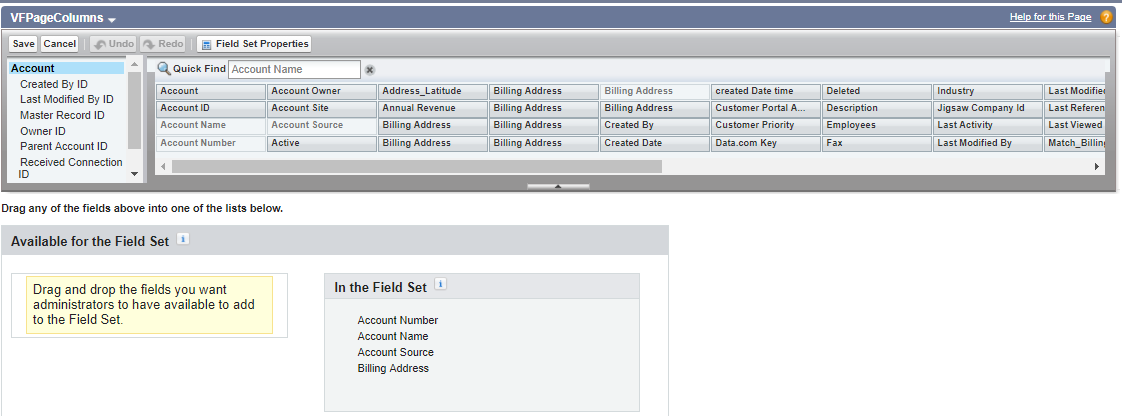
1) Field set on Account. I will call it VFPAGECOLUMNS. you can create it by going to set->Customize->Account->FieldSets


2) Access this field set from your VF page by using. In my case i am using this inside <Apex:repeat> to iterate each field in the field set. 

{!$ObjectType.Account.fieldSets.VFPageColumns}

Here is the complete code:

<apex:page standardcontroller="Account">
    <apex:form>
    <apex:pageblock title="Dynamic columns in Visualforce Page with FieldSet">
        <apex:pageblocksection>
            <apex:repeat value="{!$ObjectType.Account.fieldSets.VFPageColumns}" var="accField">
                    <apex:inputfield value="{!Account[accField]}">
                    </apex:inputfield></apex:repeat>
            </apex:pageblocksection>
        </apex:pageblock>
    </apex:form>

</apex:page>


And the output looks like following. Also. you can also set fields to required in the layout from the field set by double clicking on any field and set it to Required

Showing dynamic fields/columns in VisualForce Page

A lot of times, we choose visualforce pages to override standard view/edit views in salesforce. But one of the drawbacks in choosing this approach is that the client has to rely on a developer to make any changes in the field being displayed on the page or to add a new field in the layout of the visualforce page. 

There are several approach by which we can go for visualforce pages with still having the flexibility for the client or admin to change the fields by themselves without even changing the code. Here are few methods:

1) Using Field Sets
2) Using Reports
3) Using ListViews

Share in comments if you are aware of any other methods to achieve the same.

Week number and week number difference in salesforce

Formula field:

Find Week Number :


MOD(FLOOR( (Date__c -DATEVALUE(Datefield ))/7),52)+1

Find Week Number difference (obvious) :

(MOD(FLOOR( (Date__c -DATEVALUE(Datefield ))/7),52)+1)  - (MOD(FLOOR( (Date__c -DATEVALUE(Datefield ))/7),52)+1)


Apex Code:

Find Week Number :

Integer weeknum = weeknumber(Date.newinstance(YourDatefield));
public Integer weeknumber(Date startdate){
Date todaydateinstance = date.newinstance(startdate.year(), startdate.month(), startdate.day());

Integer currentyear = startdate.year();

Date yearstartdate = date.newinstance(currentyear, 01, 01);
Date year2ndweek = yearstartdate.adddays(7).tostartofweek();

if(startdate<year2ndweek)
return 1;
integer numberDaysDue = year2ndweek.daysBetween(todaydateinstance);

Integer numberOfWeek;
if(math.mod(numberDaysDue,7)==0)
numberOfWeek = math.MOD(Integer.valueof(math.FLOOR( ( numberDaysDue )/7)),52)+1;
else
numberOfWeek = math.MOD(Integer.valueof(math.FLOOR( ( numberDaysDue )/7)),52)+2;
return numberOfWeek;

}


Find Week Number Difference:
Integer difference = weeknumber(Date.newinstance(YourDatefield2)) - weeknumber(Date.newinstance(YourDatefield1)) ;


Using Wrapper class for displaying records from two objects in a single table

Sometimes we need to display data from different objects (not related to each other) in a table. Best way to do that is using wrapper class. I am showing you an example where i am displaying records from contact and account object ( i am not using their r/ship, so it could be any two object)

Page:
<apex:page controller="Deleteme7_controller" >
<apex:pageBlock >
    <apex:pageblocktable value="{!final}" var="a">
            <apex:column value="{!a.acc.name}" /> 
            <apex:column value="{!a.con.name}"/>
            </apex:pageblockTable>
     </apex:pageBlock>
</apex:page>

Controller:

public with sharing class Deleteme7_controller {
List final3 = new list();
wrapclass wrapobject;
public Deleteme7_controller (){
list a= [select id,name from account];
list c = [select name,id from contact];
add(a,c);
}

public list getFinal(){
return final3;
}

public void add(list a,list b){
integer j=0;

public class wrapclass{
public account acc{get;set;}
public contact con{get;set;}

}
}

Button to activate/deactivate a task on a object

Sometimes we feel like to create a button/checkbox to activate/deactivate a task on that respective object. There are two ways to do that
1) Workflows (Easier, but has limits)
2) Trigger
I am sharing the code with you for creating a checkbox. If set to true, create a task for reminding after 30 days, if deactivated, delete the task.

for (Contact c :trigger.new){

  contact oldc = trigger.oldmap.get(c.id);

  if(c.Activate__c==true && oldc.Activate__c==false){

    task t = new task();

    t.subject = 'Reminder about calling Contact';

    t.whoid = c.id;

    t.isreminderset = true;

    t.reminderdatetime = system.today()+30;

    t.status = 'In Progress';

    t.IsRecurrence = false;

    insert t;}


  else if(c.Activate__c==false && oldc.Activate__c==true){

   List<task> t = [select id from task t where t.whoid=:c.id and t.subject='Reminder about calling Contact'];

   delete t;

  }} }

Date with inputtext

We can now use a standard datepicker with <apex:inputtext> also. you can use the code Make sure you have id attribute given some value in inputtext

Controlling Recursive Triggers

Sometimes we need to update the record of same object, which is intializing the trigger. This will cause recursive trigger and throws an exception. Exception could be "SELF_REFERENCE_FROM_TRIGGER"
For example, suppose you have self look up to contact named spouse. You have two contact, A and B. when you select A as spouse of B, you want to also update A as spouse of B. In trigger for A, when you update B, it will call recursive trigger.
To control/prevent such condition, we need to add a static variable in another class, as this variable will share single instance, as these transaction has occured from a single event. This static variable allows the code to execute in first run. but prevent from any run thereafter.


code for static var:


public class flag {
public static boolean firstrun = true;
}

code for trigger:


trigger MatchSpouse on Contact (after insert, before update) {
List spouses = new List();
Contact spouse;
for (Contact c : Trigger.new){
if (c.Spouse__c != null){
spouse = new contact(id = c.spouse__c);
if(spouse.Spouse__c != c.id)
{
spouse.Spouse__c = c.id;
spouses.add(spouse);
}}}
if(spouses.size()>0 && flag.firstrun ){
flag.firstrun = false;
update spouses;

}}

Creating dependant pickist in visualforce from custom settings

Creating dependant pickist in visualforce from custom settings

Hi,
Today, i got a requirement for creating a dependant picklist which gets its values from custom setting. I thought of sharing it with you all.

In my example, i am selecting name of countries and its associated city from custom settings.

Steps :
1) Create a new list type custom setting, with only one text field named 'City' in my case.
2) Click on manage in the custom setting, and create a new record.
Name of the custom setting record should be name of the country.
City field contains name of the cities for that country, separated by ';'


3) Code for page :


<apex:page controller="CustomSettings_controller" >
<apex:pageBlock >
<apex:form >
<apex:actionFunction name="rerenderStates" rerender="ListState" >
<apex:param name="firstParam" assignTo="{!country}" value="" />
</apex:actionFunction>

<apex:pageblocksection >
Country <apex:selectList id="ListCountry" value="{!country}" size="1" onchange="rerenderStates(this.value)">
<apex:selectOptions value="{!countrylist}"></apex:selectOptions>
</apex:selectList>
</apex:pageblocksection>

<apex:pageblocksection >
State <apex:selectList id="ListState" value="{!states}" size="1">
<apex:selectOptions value="{!statelist}"></apex:selectOptions>
</apex:selectList>
</apex:pageblocksection>

</apex:form>
</apex:pageBlock>
</apex:page>

4) code for controller :


public class CustomSettings_controller {


Map<String, countrystate__c> c = countrystate__c.getall();


public list<selectoption> getStateList() {
list<selectoption> s = new list<selectoption> ();
s.add(new selectoption('','Select one'));
if(country==null){
country='';
}
else
if(c.containskey(country)){
s.clear();
string sm = c.get(country).States__c;
for(string st: sm.split(';'))
s.add(new selectoption(st,st));
}

return s;
}


public List<SelectOption> getCountrylist() {
List<SelectOption> country = new List<SelectOption>();
country.add(new selectoption('India','---SELECT ONE---'));
list<string> countryname= new list<string>();
countryname.addall(c.keyset());

for(string s : countryname){
country.add(new selectoption(s,s));

}

return country;
}


public String states { get; set; }

public String country{ get; set;}

}


Final Outcome :


Test a controller in salesforce

Some developers have become frustrated when trying to write unit tests for their Controllers। To be fair, if you don’t know what base you assertions on, it can be hard to test the code. So here are a couple of quick tips for getting it done:
suppose you have a controller like this


public with sharing class TestingVFController_Controller {

private string qp;

public TestingVFController_Controller(){
this.qp=ApexPages.currentPage().getParameters().get('qp');
}

public string FirstName {
get;set;}

public string LastName {
get;set;
}
public string email {
get;set;
}
public string Company {
get;set;
}

public PageReference save(){
PageReference p=null;
if(this.qp==null || !'yyyy'.equals(this.qp)){
p=Page.filenotfound;
p.getParameters().put('error','NoParam');

}
else{
try{
Lead l = new Lead(Firstname=this.firstName,LastName=this.LastName,company=this.Company, email=this.email);
insert l;
}
catch(Exception e)
{
p=Page.filenotfound;
p.getParameters().put('error','insertFailure');
}

}
if(p==null)
p=Page.homepage;

p.setRedirect(true);
return p;
}
}

Solution for "INVALID_SESSION_ID: Invalid Session ID found in SessionHeader: Illegal Session"


System.out.println("LOGGING IN NOW....");
enterpriseConnection connection = new enterpriseConnection();
loginResult = connection.login(userName, Password);
System.out.println("Succesfully logged IN");
connection._setProperty(SoapBindingStub.ENDPOINT_ADDRESS_PROPERTY, loginResult.getServerUrl());
SessionHeader sessionHdr = new SessionHeader();
sessionHdr.setSessionId(loginResult.getSessionId());
connection.setHeader(new SforceServiceLocator().getServiceName().getNamespaceURI(),"SessionHeader", sessionHdr);

resolution for "the url returned from login must be set in the sforceservice "


EnterpriseConnection connection = new enterpriseConnection();
loginResult = connection.login(userName, Password);
System.out.println("Succesfully logged IN");
connection._setProperty(SoapBindingStub.ENDPOINT_ADDRESS_PROPERTY,loginResult.getServerUrl());
SessionHeader sessionHdr = new SessionHeader();
sessionHdr.setSessionId(loginResult.getSessionId());
connection.setHeader(new SforceServiceLocator().getServiceName().getNamespaceURI(),"SessionHeader", sessionHdr);

How to Unit Test Recieving Email in Apex

Suppose you have a class like this for recieving email


/**
* Email services are automated processes that use Apex classes
* to process the contents, headers, and attachments of inbound
* email.
create account from email subject
create contacts from email cc
create text and binary attachments if any

*/
global class EmailDemoReceive implements Messaging.Inboundemailhandler {

global Messaging.Inboundemailresult handleInboundemail(Messaging.Inboundemail email, Messaging.Inboundenvelope env ){
Account account;
Messaging.Inboundemailresult result = new Messaging.Inboundemailresult();
try{

if([Select count() from Account where Name =:email.subject ]==0){
account = new Account();
account.Name = email.subject;
insert account;
}else {
account=[select id from account where name=:email.subject ];
}

// Convert cc'd addresses to contacts
for (String address : email.ccAddresses) {
Contact contact = new Contact();
Matcher matcher = Pattern.compile('<.+>').matcher(address);

// Parse addresses to names and emails
if (matcher.find()) {
String[] nameParts = address.split('[ ]*<.+>')[0].replace('"', '').split('[ ]+');

contact.FirstName = nameParts.size() > 1 ? nameParts[0] : '';
contact.LastName = nameParts.size() > 1 ? nameParts[nameParts.size()-1] : nameParts[0];
contact.Email = matcher.group().replaceAll('[<>]', '');
} else {
contact.LastName = address;
contact.Email = address;
}

// Add if new
if ([select count() from Contact where Email = :contact.Email] == 0) {
contact.AccountId = account.Id;
insert contact;
}
}


for(Messaging.Inboundemail.Binaryattachment Battachment : email.binaryAttachments){
Attachment a = new attachment();
a.Name= battachment.fileName;
a.body= battachment.body;
a.parentID= account.id;
try{
insert a;}
catch(DMLException e){
system.debug(e.getMessage());
}
}

for(Messaging.Inboundemail.Textattachment tAttachment : email.textAttachments) {
Attachment a = new Attachment();
a.name= tAttachment.fileName;
a.body= blob.valueOf(tAttachment.body);
a.parentID= account.id;
insert a;
}

result.success= true;
}
catch(Exception e){
result.success=false;
result.Message='oops, failed again';

}

return result;
}

}


Unit class for testing this would be


@IsTest
private class EmailDemoReceiveHandlerTests {

// Create a new email and envelope object
Messaging.InboundEmail email = new Messaging.InboundEmail();
Messaging.InboundEnvelope env = new Messaging.InboundEnvelope();

// Set up your data if you need to

// Create the email body
email.plainTextBody = 'This should become a note';
email.fromAddress ='test@test.com';
String contactEmail = 'jsmith@salesforce.com';
email.ccAddresses = new String[] {'Jon Smith <' + contactEmail + '>'};
email.subject = 'Dummy Account Name 123';

EmailDemoReceive edr = new EmailDemoReceive();

Test.startTest();
Messaging.InboundEmailResult result = edr.handleInboundEmail(email, env);
Test.stopTest();

System.assert (result.success, 'InboundEmailResult returned a failure message');

Account [] accDb = [select ID from Account where name=:email.subject];
System.assertEquals (1, accDb.size(),'Account was not inserted');
Contact [] cDb = [select firstname,lastname from Contact where email=:contactEmail];
System.assertEquals (1, cDb.size(),'Contact was not inserted!');
Contact c = CDb[0];
System.assertEquals ('Jon', c.firstName);
System.assertEquals ('Smith', c.LastName);
Note [] nDb = [select body from Note where ParentID=:accDb[0].id];
System.assertEquals (1,nDb.size(), 'A note should have been attached');
System.assertEquals (email.plainTextBody, nDb[0].body);

}
}

Testing PageReference in Controllers in Salesforce

Some developers have become frustrated when trying to write unit tests for their Controllers. To be fair, if you don’t know what base you assertions on, it can be hard to test the code. So here are a couple of quick tips for getting it done: Imaging you have a controller's pagereference method like the following:
public class TestingVFController_Controller{
public PageReference save(){
PageReference p=null;
if(this.qp==null || !'yy'.equals(this.qp)){
p=Page.pagenotfound;
p.getParameters().put('error','NoParam');
}
else{
p=Page.homepage;
}}


if qp parameter='yy' then this will redirect to /apex/homepage else /apex/pagenotfound.
for this test class would be

static testMethod void ControllerTest() {
// first test without parameter
PageReference p=Page.HomePage;
Test.setCurrentPage(p);
TestingVFController_Controller ctrl=new TestingVFController_Controller();
String nextPage=ctrl.save().getUrl();

System.assertEquals('/apex/pagenotfound?error=NoParam',nextPage);


//then check with parameter case

ApexPages.currentPage().getParameters().put('qp','yyyy');
ctrl=new TestingVFController_Controller();
nextPage=ctrl.save().getUrl();
System.assertEquals('/apex/homepage', nextPage);